Diberdayakan oleh Blogger.
Tampilkan postingan dengan label notifications. Tampilkan semua postingan

Sabtu, 19 April 2014

Twitter Makes In-Browser Notifications Official

Twitter today officially announced that it would start to offer in-browser notifications — as we wrote yesterday, noticing a test of the feature.

“When you’re logged in on twitter.com, you will receive notifications if someone has replied, favorited or retweeted one of your Tweets. You can also receive notifications for direct messages and new followers,” Michael Ducker of Twitter writes. “They’re fully interactive, so that you can reply, favorite, retweet, and follow right from the notification. We’ll be rolling this feature out over the coming weeks.”

A reader in Holland alerted us to the feature being tested yesterday, and we wrote a full look at what the implications of the feature were.

Twitter says it will be rolling it out in the coming weeks.

Rabu, 16 April 2014

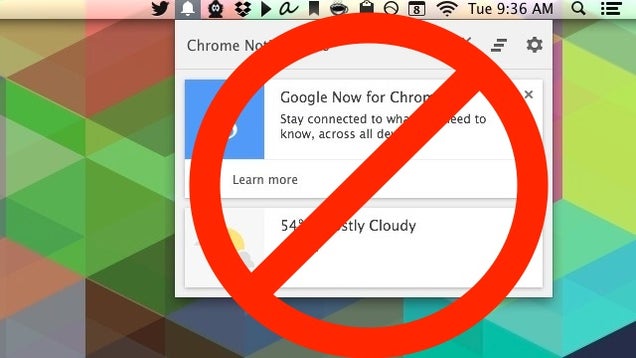
How to Disable Chrome's Google Now Notifications

How to Disable Chrome's Google Now Notifications

Google recently rolled out an update that added Google Now support to its Chrome browser on both Windows and Mac. That's great if you use Google services. If you don't, it tends to just repeatedly tell you the current weather. Here's how to disable it.

To turn off the new notifications, you have a couple different options. First off, you can just disable the Google Now notifications:

  1. Click the bell icon in the lower-right corner of your screen on Windows, or in the menu bar on your Mac
  2. Click the gear icon
  3. Uncheck the "Google Now" box

That disables the Google Now notifications but leaves other Chrome notifications. However, if you want to purge your computer of all Google's obnoxious (to some) notifications (and that bell icon you didn't ask for or permit to exist), you need to do one more thing:

  1. In Chrome, type chrome://flags into the URL bar
  2. Search for "Enable Rich Notifications" and "Enable Experimental UI for Notifications" and set both to "Disabled"
  3. Relaunch Chrome

Now, the bell will be gone, and Chrome will stop pestering you with notifications. If you're on OS X and still getting notifications, check your Notification Center settings in your System Preferences and make sure Chrome's not pushing anything over. Of course, if Google didn't automatically turn on those new notifications for you and you want to check them out, just set those notifications to "Enabled" to turn them on.


View the Original article

How to Make Your iOS Notifications Smarter with IFTTT

How to Make Your iOS Notifications Smarter with IFTTT

iOS notifications are great for keeping you up to date with whatever's happening in your apps, but they get overwhelming quickly. With If This Then That, you can now refine those notifications so they're less intrusive, smarter, and more useful. Here's how.

Why It's Worth Refining Your Notification System

How to Make Your iOS Notifications Smarter with IFTTT

As we've pointed out plenty of times before, notifications are often a distraction that can really ruin your day. That said, you don't need to kill off all your notifications, you just need to make better use of them. IFTTT makes that a lot easier. With some tuning, you can set up notifications so you're notified of only specific circumstances that you truly care about—not everything from every app. What's nice about IFTTT is that you don't need to deal with notifications on an app-by-app basis. For example, you can turn off all notifications for Facebook, but still get updated on the very specific information you really care about.

We've seen similar solutions in both PushOver and PushBullet before, but the full-on IFTTT integration makes the whole process a lot easier.

IFTTT can fix a few of the big problems I have with notifications:

  • You need to install an app to get notifications: Sometimes I don't want to install and set up an app just to keep up to date on a small thing. For example, I don't need to install the ESPN app when all I want are scores for Avalanche games.
  • You have to have all notifications on for an app: A lot of apps give you one option for notifications and that's it. For example, a weather app might allow you to set up notifications for when it'll rain, but it sends them to you all the time. IFTTT lets you decide when and why you get those notifications on a more precise level. Likewise, you can fine-tune notifications for an app like Facebook so you only get a handful of the really important notices.
  • Apps don't offer notifications for what you want: Not all apps have every notification type, but IFTTT can create special notifications. For example, if you have just a handful of people you care about on social networks, you could set up notifications so that when they post to Instagram you're notified about it.

Essentially, IFTTT allows you to really fine tune and refine your notifications for a smarter system. This makes IFTTT your central hub for notifications so you don't have to mess around with other apps. Not only will it make your Notification Center less cluttered, it should help with battery life a bit too.

Set Up Notifications for IFTTT

How to Make Your iOS Notifications Smarter with IFTTT

Setting up notifications in IFTTT is super easy. You just need the IFTTT mobile app on your phone or iPad.

  1. Open up IFTTT and tap the recipe icon on the top-right
  2. Tap "Channels" and look for "iOS Notifications"
  3. Tap Activate and follow the steps

From there, it's all about setting up recipes that trigger your notifications. We've walked you through the process on both iOS and from the web before, so let's skip straight over to some of the better recipes that are already available. These aren't the end-all of recipes, but they should help you brainstorm some of your own.

Get Notifications for Only Specific Emails

How to Make Your iOS Notifications Smarter with IFTTTS

Email notifications are awesome, but you really don't need them for every single email you get. A recipe like this one for specific email addresses or this one for VIPs makes it so you only get notified of emails from people you actually care about.

Get a Weather Notification When You Wake Up

How to Make Your iOS Notifications Smarter with IFTTTS

Weather notifications are typically pretty unnecessary, but they're nice every once in a while. This recipe sends you a single notification with the upcoming days weather right when you wake up. If you'd prefer even fewer notifications, you can also set up notifications for the times you'll need a coat, when you need to put on sunscreen, pollen counts rise, or when it's going to rain.

Remind Yourself to Turn Wi-Fi On and Off When You Leave the House

How to Make Your iOS Notifications Smarter with IFTTTS

This recipe provides a helpful recurring reminder to turn your Wi-Fi off (or on) whenever you leave the house. If you're trying to save battery power, but still want to keep notifications and location services on, this is one way to do it.

Set a Recurring Reminder

How to Make Your iOS Notifications Smarter with IFTTTS

Pretty much every to-do app or calendar app has a place to enter in recurring reminders, but if you don't need all that bulk for a few simple things, IFTTT is great for things like reminders to pay rent or call your mom.

Get Sports Score Notifications for Just the Teams You Want

How to Make Your iOS Notifications Smarter with IFTTTS

If you're not a big enough sports fan that you need to see every single detail about every single game, then this recipe is great because it just tells you a team's score. It's an awesome way stay in the know about your local teams without taking up too much of your time.

Get Specific Notifications for Social Networks

How to Make Your iOS Notifications Smarter with IFTTTS

Pretty much every social network out there has a ton of different notifications it wants to send you. For most of us, that's too much, but IFTTT allows you to get a little more control over what you see. For example, this recipe notifies you when a specific user posts to Instagram, follower alerts on Twitter, you're tagged in a photo on Facebook, or when a specific group member posts something on Facebook.

Get Shipping Updates for Orders

How to Make Your iOS Notifications Smarter with IFTTTS

Unless you're shipping things all the time, you really don't need to install a specific app just to track shipments. This recipe just needs a tracking number and it'll send you updates as a package makes its way across the country.

RelatedRelated
Notifications Are Evil

What's your maximum NPH? How many notifications are you exposed to every hour? Let's take a second to think critically about these constant … Read…

Related


View the Original article

Checker Plus Reads Gmail Messages, Marks as Read from Notifications

Chrome: Google's browser has a pretty nifty notification system. While Gmail can provide some basic notifications through Chrome, Checker Plus lets you automatically read emails out loud, mark them as read from the notification, and more.

The extension has a host of options, including the ability to read your emails out loud to you using text-to-voice software. You can also customize which action buttons the notification shows, including mark as read, delete, archive, star, reply, or a bunch more. The extension can also show you the inbox for every account you're logged into in Chrome, so you don't need to have multiple Gmail tabs open.

Checker Plus | Chrome Web Store via MakeUseOf


View the Original article

Selasa, 15 April 2014

Twitter Tests Notifications In Your Web Browser

web_notifictions

Twitter is no stranger to trying out new features on its social networking platform. Yesterday it announced it is in the process of testing and rolling out no fewer than 15 different ad units, at least some of which are already popping up for users. Today comes news of a feature that focuses Twitter on the desktop experience: web notifications. In Twitter’s words, the feature will let you “receive notifications in your web browser.”

The feature was noticed by a user in Holland, Michel Wester, who says it popped up on a test account he uses. It first appeared not as an active feature, but as a (currently disabled) option in the settings on the account. He says that while the tab with the option disappeared earlier today, the URL for the feature still works for him in Chrome and Firefox, but not other browsers. (It’s unlikely to work for you unless you’re in Twitter’s test set, I suspect.) Above is the screenshot he provided us showing how Twitter’s feature looks right now in an English-language browser.

It may be the backend, settings counterpart to the pop-up notifications noticed by Engadget earlier this year.

We’ve reached out to Twitter to ask about this and will update when we learn more.

The feature, if and when it goes live, could give Twitter more feature parity between its desktop and mobile experiences — something it’s been striving for in a more general sense with its redesigns and features like suggestions of promoted accounts to follow.

On mobile, you can already get push alerts for tweets that mention your name from users you follow, for your retweets and favorites, and, in some markets, for selected accounts that have signed up for the Twitter Alerts service, no matter what else you’re doing on the phone (as long as you are within range of a data connection).

On the desktop, you can get email notifications, and certain alerts in real-time on Safari for Mac. But in the most popular browsers like Chrome and Firefox, real-time notifications are the terrain of third-party extensions.

Twitter this week announced that it will be reporting its next quarterly earnings on April 29. It has a tall order ahead of it to bring more users to its service — which counted 241 million total and 184 million mobile monthly users last quarter.

But, perhaps just as important in a social media world that puts a lot of emphasis on engagement and time spent on site, Twitter needs to keep those who do use it coming back for more.

In that sense, offering a notifications system where your Twitter alerts can pop up wherever you are online is one way of drawing existing users in.

It’s also an interesting framework that Twitter could use and tailor to other purposes — not just for users’ own narcissistic pleasure of seeing where their tweets are flying, but potentially for Sponsored Tweets, or those from specific accounts designated by the user, or even a list you have (did someone say RSS?).

I, for one, would really like to stay on top of whatever Kim Kierkegaardashian has to say.

There is also some interesting timing here worth pointing out. The company on Monday announced the acquisition of Cover, which lets users create customised lockscreens for Android devices.

Just as a hypothetical, Cover integration could place the Twitter experience and its content outside of the main Twitter walled garden — forever the subject of complains that it’s just too difficult to use — a browser extension could end up serving the same purpose on the desktop, seeding tweets you wherever you go on the web.

Updated Pushbullet improves notifications, supports Tasker events

pushbullet-update-richer-desktop-notifications-support-tasker-events-0170

File- and notification-pushing Android app Pushbullet fired its big guns again as the app’s updated version now provides richer desktop notifications and Tasker event plugin support.

According to the Pushbullet blog, the full images of notifications on your Android device are now displayed on your desktop. This means that, with just one look, you can instantly know who sent an email or a text message.  A preview of the message is also shown in the notification.

pushbullet-update-richer-desktop-notifications-support-tasker-events-0172

The post also mentions that Pushbullet can now display the album art of a song currently playing on your Android device.

Improved power efficiency

Pushbullet forwards notifications from your Android device to your desktop through the app’s Notification Mirroring Service, which, according to the same blog post, has been optimized for performance and power consumption. The improvements will reportedly make the service run faster and use less memory, resulting in a more efficient battery use.

Tasker Events support

Pushbullet also now supports Tasker event plugins, a new feature as of Tasker version 4.3. Pushbullet already supported sending Pushbullet notifications through Tasker. The latest version of Pushbullet, however, added support for triggers. This means that you can push a notification from your desktop to phone, for example, and have Tasker react to that. This feature practically opens up many different possibilities for automating your Android device using both Tasker and Pushbullet.

pushbullet-update-richer-desktop-notifications-support-tasker-events-0174

And, while not many people will be as eager to play around with a Pushbullet+Tasker toy, most people will find Pushbullet’s core functions still useful for “pushing” notes, files, images, URLs, addresses, and others to your desktop from your phone — or vice versa — plus the convenience of not having to pick up your Android device just to know why it’s beeping or ringing.

Do you use Pushbullet? Or do you prefer other file-sharing Android apps or remote desktop apps? What do you use Pushbullet for? Have you tried using Tasker with Pushbullet — and for what purpose? Let us know in the comments.

Jumat, 21 Maret 2014

‘MarkAsRead for Gmail’ app brings a Read button to Gmail notifications

markasread

Right now, if you receive a Gmail notification, you have one of two options: you can either archive it or reply. Wish there were more choices than that? Thanks to a new app appropriately named “MarkAsRead for Gmail” you finally get the option to simply mark the message as read, without having to do anything else.

MarkAsRead works by intercepting Gmail notifications, it then dismisses them and sends a clone to our notification tray that adds a handy “Read” button in between the Archive and Reply options. Although this is a simple app, it’s still a welcome change that we wish Google would bring us directly.

You can grab the app for yourself from Google Play for $1.31. While this is a little hefty of a price to pay for an app that has just one function, remember that you’re not just buying the one feature, but your investing in the developer and the work they’ve put into it. And for what it’s worth, the developer already has more “MarkAsRead” ideas in store for us in the future, such as possibily bringing similar functionality to SMS messages.

What do you think, is getting a “Read” button worth $1.31 in your opinion? Anyone try this yet, if so, does it work for you as it should?

Like this post? Share it!