







Diberdayakan oleh Blogger.
Tampilkan postingan dengan label Disable. Tampilkan semua postingan

Selasa, 29 April 2014

Disable My Magazine, built-in apps and battery leeches on Galaxy S5

Loie Favre

Loie Favre

Loie Favre is a Canadian-German, food-loving, live-music-craving globe-trotter. Coming from a humble background in the Canadian Prairies centred around nature and the Arts, she studied Translation and Languages in Edmonton. She left his home on the Pacific Coast of Canada, to seek her fortune in Berlin. She is now an Editor and Manager for AndroidPIT.com and is enjoying discovering about everything and anything under the sun about Android.

Samsung has upped the ante on software features on the Galaxy S5, but do we really want every new thing they have to offer? If you aren’t a fan of some of the added features, feel free to go on a disabling rampage and get rid of the maze of perhaps cumbersome and annoying features. With the how-to steps described below, ready, set, go!

com teaser magazine © AndroidPIT

This is just the tip of the ice berg of all the things you can disable if you so desire. But on the other hand, if you don't like to have so many built-in features on the Galaxy S5 I'm surprised you even bought it! It might be better to wait for the Galaxy S5 Google Play Edition that will still of course have the amazing screen, processor and other hardware perks, but without the added features so many like to refer to as bloatware.

Disable My Magazine

Samsung is trying their luck at an homescreen, built-in flipboard-type news feed of the content that you can choose yourself. Thankfully you can disable it, not like HTC did when they first introduced BlinkFeed on the first HTC One. Disabling it from the home screen is easy to do:

  • Long press on the home screen panel.
  • Select ‘Home screen settings’
  • Untick the box for My Magazine.
  • Done!
androidpit galaxy s5 remove my magazine 1© AndroidPIT

Disable unwanted built-in apps

Next, Samsung allows users to disable apps that are built into the TouchWiz UI, meaning you can’t actually uninstall them, unless you have root access. You can do this two different ways and then all your disable apps will be stored nicely in one spot.

Method 1

  • Find the settings icon (gear) in your App drawer or scroll down and select it in the notifications panel. Tap on this and scroll down to the category Applications, under which you will find Applications manager.
  • Once in the Application Manager, swipe the left to ‘All’ and find the app that you want disabled. Tap on it and then simply choose ‘disable’.
androidpit galaxy s5 disable builtin apps 1 © AndroidPIT

Method 2

  • This way is a bit easier and a lot quicker. Long press on the app in the App drawer and drag the app in question to disable.
  • After either of these methods, the disable apps will be found in the ‘’Turned off’ section of the Application manager, which is found all the way to the left, past ‘all’’. This section disappears when you don’t have anything in there.
androidpit galaxy s5 disable builtin apps 2© AndroidPIT

Disable battery-draining features

Though the Galaxy S5 has been deemed one of the best smartphone for battery duration, thanks in part to the crazy ultra battery saving mode, there are still other features that will drain battery, some of which you probably don’t even use. Luckily, many of these are nicely organized in the quick settings in the form of toggles and can be quickly switched on and off with one tap. Some of the battery suckers are NFC, Smart Stay, Bluetooth, Location, Wi-Fi and Smart Pause, and should be switched off when not in use.

galaxy s5 watermark 20© AndroidPIT

This is just the tip of the ice berg of all the things you can disable if you so desire. But on the other hand, if you don't like to have so many built-in features on the Galaxy S5 I'm surprised you even bought it! It might be better to wait for the Galaxy S5 Google Play Edition that will still of course have the amazing screen, processor and other hardware perks, but without the added features so many like to refer to as bloatware.

Do you have any tips for the Galaxy S5?


View the Original article

Minggu, 27 April 2014

How to disable Facebook video auto-play on Android and PC

Loie Favre

Loie Favre

Loie Favre is a Canadian-German, food-loving, live-music-craving globe-trotter. Coming from a humble background in the Canadian Prairies centred around nature and the Arts, she studied Translation and Languages in Edmonton. She left his home on the Pacific Coast of Canada, to seek her fortune in Berlin. She is now an Editor and Manager for AndroidPIT.com and is enjoying discovering about everything and anything under the sun about Android.

Aside from changing the look of the Facebook user interface with the recent update, which hasn’t been that warmly welcomed by users, there is yet another Facebook feature that can be quite annoying: video auto-play. Not only do you not always want to see what people are showing, but this also uses up more of the data (if your plan isn’t unlimited) and battery of your Android. Here is how to disable this feature on Android and PC.

facebook videos© AndroidPIT.

First off, I just want to clarify that you can’t actually disable automatic video playback completely. The only available option in the update is to choose whether or not the auto-play videos will occur on Wi-Fi only. This means that when the box isn’t ticked, auto-play will happen when using mobile data. Check this box so that none of your precious data is used for some silly videos.

androidpit facebook video auto play 1© AndroidPIT

To do this, swipe to the furthest tab on the Facebook app for Android and tap on App Settings. Right there under the General Settings, tap on ‘Auto-play videos on Wi-Fi only’ to tick off the box.

Facebook on your PC

When on the Facebook website on your personal computer, you can switch this feature off completely, though it won’t affect the settings on your phone. Sadly, the features on the website do not often coincide with the ones on Android, which we discovered with the privacy and security settings for Facebook. Go to settings, then videos and from the drop down menu, select off.

androidpit facebook web settings© AndroidPIT

Did you figure it out? What other features do you wish you could disable?


View the Original article

Minggu, 20 April 2014

Verizon, AT&T and Sprint disable Galaxy S5's download booster

Kris Carlon

Kris Carlon

Putting down roots in Berlin after six years of traveling is a major step for Kris Carlon, who has spent more time living out of a tent lately than sitting at a desk. Kris comes to the AndroidPIT Editorial Team via a lengthy period spent writing on art and culture in Australia and other places he has lived. He joined the Android community while resurfacing in civilization back in 2010 and has never looked back, using technology to replace his actual presence in other people's lives ever since.

There were two features of the Galaxy S5 that impressed me at its launch: the Ultra Power Saving Mode and the Download Booster, which allows you to download 1 GB of data in 30 seconds by combining both Wi-Fi and 3G/LTE data to handle the download. Sadly though, if you're planning on picking up a Galaxy S5 on either the Verizon, AT&T or Sprint networks, you'll have to live without the download booster feature.

AndroidPIT Galaxy S5 Download BoosterDon't go looking for this feature on Verizon, Sprint and AT&T Galaxy S5's. / © AndroidPIT

Android Police originally noticed that demo models of the AT&T variant did not have the feature enabled. FierceWirelessTech then independently confirmed with both Verizon and Sprint that they will not be offering the feature either, leaving T-Mobile as the only major nationwide carrier to include the download booster in its Galaxy S5.

galaxy s5 gear fitInternational versions of the Galaxy S5 get the Download Booster function. / © AndroidPIT
It's not exactly new that some carriers disable features available on international or other variants of a device, sometime due to local laws or other restrictions, but in this case it's a bit of a bummer for anyone wanting to use the feature to quickly and easily transfer data as quickly as possible. Considering most people don't exactly seem to be thrilled by the finger scanner or heart rate monitor on the S5, losing a valuable feature like the download booster is not a great way to market the device on sale day.

What do you think about carriers disabling a feature like this? Would you consider switching companies to keep device features?

Source: FierceWirelessTech, Android Police


View the Original article

Rabu, 16 April 2014

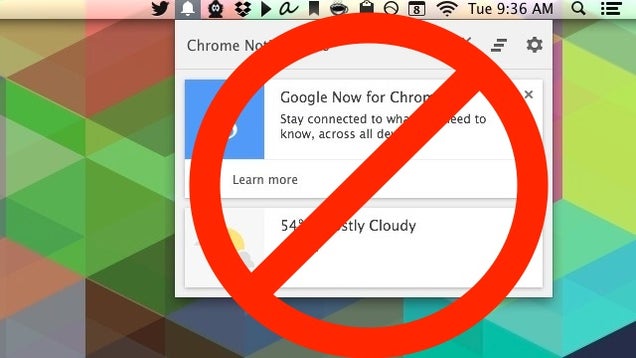
How to Disable Chrome's Google Now Notifications

How to Disable Chrome's Google Now Notifications

Google recently rolled out an update that added Google Now support to its Chrome browser on both Windows and Mac. That's great if you use Google services. If you don't, it tends to just repeatedly tell you the current weather. Here's how to disable it.

To turn off the new notifications, you have a couple different options. First off, you can just disable the Google Now notifications:

  1. Click the bell icon in the lower-right corner of your screen on Windows, or in the menu bar on your Mac
  2. Click the gear icon
  3. Uncheck the "Google Now" box

That disables the Google Now notifications but leaves other Chrome notifications. However, if you want to purge your computer of all Google's obnoxious (to some) notifications (and that bell icon you didn't ask for or permit to exist), you need to do one more thing:

  1. In Chrome, type chrome://flags into the URL bar
  2. Search for "Enable Rich Notifications" and "Enable Experimental UI for Notifications" and set both to "Disabled"
  3. Relaunch Chrome

Now, the bell will be gone, and Chrome will stop pestering you with notifications. If you're on OS X and still getting notifications, check your Notification Center settings in your System Preferences and make sure Chrome's not pushing anything over. Of course, if Google didn't automatically turn on those new notifications for you and you want to check them out, just set those notifications to "Enabled" to turn them on.


View the Original article